
As a techblogger, I’m constantly on the lookout for tools that genuinely empower developers and streamline workflows. And let me tell you, Google’s Gemini CLI has landed with a splash, bringing the incredible power of Gemini models directly into your command line. If you’re a developer, or just someone who loves the efficiency of the terminal, you’re going to want to pay attention.
The Gemini CLI isn’t just another AI gimmick; it’s a game-changer. Imagine having a highly intelligent, open-source AI assistant living right inside your terminal, ready to tackle coding challenges, generate documentation, and even automate complex operational tasks. That’s the promise, and the reality, of the Gemini CLI.
Why the Gemini CLI is a Must-Have in Your Dev Toolkit
So, what makes the Gemini CLI so compelling?
- AI at Your Fingertips: Forget switching between browser tabs or API calls. The Gemini CLI puts the formidable Gemini 2.5 Pro model – with its massive 1 million token context window and impressive coding prowess – directly where you work. This is AI-powered development, truly integrated.
- Local and Secure: In a world of cloud-centric AI, the Gemini CLI offers a refreshing twist: it runs locally on your machine. This means your sensitive code, proprietary data, and confidential information never leave your environment. For security-conscious developers and teams, this is a monumental win.
- Open Source, Open Possibilities: Built with an Apache 2.0 license, the Gemini CLI is transparent and extensible. Want to see how it works under the hood? Go for it. Want to contribute or build your own custom integrations? The door is wide open. This community-driven approach fosters innovation and ensures the tool evolves to meet real-world needs.
- Beyond Code Generation: The ReAct Loop: This isn’t just about spitting out code snippets. The Gemini CLI leverages a “Reason and Act” (ReAct) loop, allowing it to reason through complex problems, leverage built-in tools (like
grep,terminal,web-search), and even interact with your local file system. This intelligence means it can understand your intent and take meaningful actions. - The Power of Context: Imagine an AI that truly understands your project. With
GEMINI.mdfiles, you can provide the Gemini CLI with specific context – your project’s architecture, coding style guides, build processes, even the team’s internal jargon. This allows for incredibly relevant and accurate responses, making the AI feel like a true member of your development team.
What Can You Do with It? A Glimpse into its Superpowers
The applications are vast, but here are some highlights that have genuinely impressed me:
- Code Comprehension & Refactoring: Struggling to understand a legacy codebase? Ask the Gemini CLI to summarize its architecture, explain a module’s purpose, or map data flows. Need to refactor a messy function? It can propose cleaner, more efficient solutions.
- Bug Detection & Fixing: Point it at a piece of code, describe the error, and watch it suggest potential fixes. It’s like having a senior developer reviewing your code in real-time.
- Automated Testing: One of my favorites: auto-generating
pytesttest cases! This alone can save hours of tedious work. - Documentation on Demand: Need to whip up a
CHANGELOG.md, a quick README, or a detailed GitHub issue reply? The Gemini CLI can generate structured markdown in a flash. - Operational Automation: Think beyond code. Automate querying pull requests, assist with complex Git rebases, or even draft responses to common support queries.
- Web Integration & Research: Need to ground its responses with current information? The
web-searchandweb-fetchtools allow it to browse the web and bring in relevant data, making its answers even more robust.
Getting Started is a Breeze
Ready to give it a spin? The setup is straightforward:
- Prerequisites: Make sure you have Node.js version 18 or higher installed.
- Installation: Open your terminal and run:
npm install -g @google/gemini-cli - Launch & Authenticate: Type
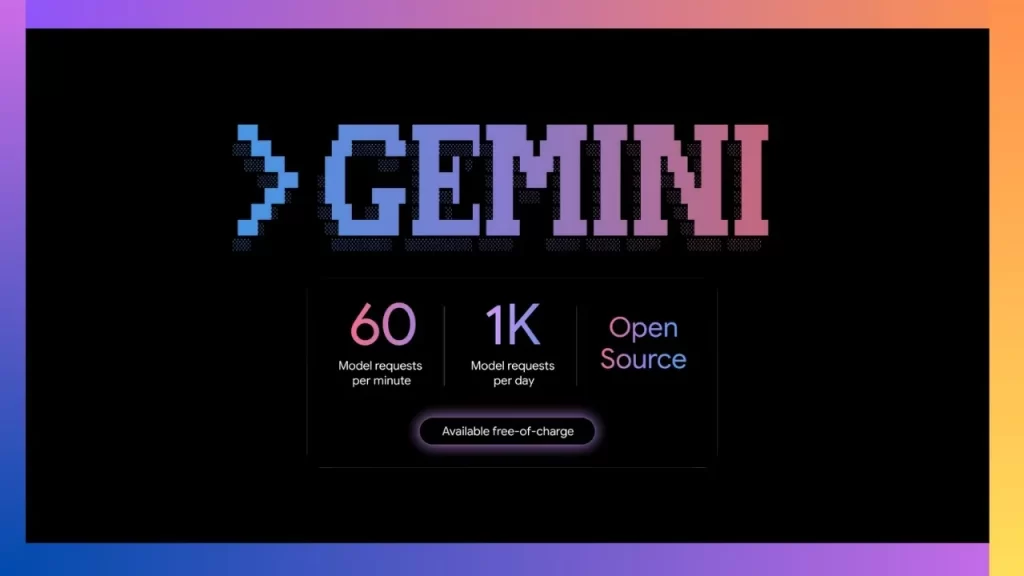
geminiand follow the prompts to log in with your Google account. You’ll gain access to a generous free tier (60 requests/minute, 1,000 requests/day) – more than enough to get started and explore its capabilities.
The Future is Terminal-Driven
The Gemini CLI represents a significant step forward in how we interact with AI as developers. By bringing powerful models directly into our most familiar environment – the terminal – Google has created a tool that’s not just smart, but also incredibly practical and secure. If you’re looking to boost your productivity, explore new ways of coding, or simply curious about the bleeding edge of AI in development, I highly recommend adding the Gemini CLI to your toolkit. Your terminal, and your workflow, will thank you.